
Mastering tools like AWS CLI empower developers to develop, deploy, automate, test, scale, or maintain their applications remotely. Ubuntu 24.04 is a robust platform that offers seamless integration of workflows and automation of tasks via one-line commands and AWS CLI. This article is a practical walkthrough of installing AWS CLI on Ubuntu 24.04 to work with cloud services via commands.
Quick answer
The best way to install AWS CLI on Ubuntu 24.04 is usually the official AWS zip installer because it provides the current AWS CLI v2 release. The Snap method is simpler and works well for quick setups, but always confirm the installed version with aws --version.
How to Install AWS CLI on Ubuntu 24.04?
AWS CLI can be installed on Ubuntu 24.04 via Snap, the official AWS zip installer (tar.gz), or pip. The Snap and zip methods install AWS CLI v2; the pip method installs v1.
How to Install AWS CLI on Ubuntu 24.04 Using Snap Packet Manager?
The Snap package manager is a secure and reliable way to download, install, update, or remove multiple packages via one-line commands across multiple Linux distributions. This section will use Snap to install AWS CLI on Ubuntu 24.04.
Step 1: Install AWS CLI
Install the AWS CLI on Ubuntu 24.04 from the Snap package manager in the “classic” mode:
sudo snap install aws-cli --classic
Step 2: Verify the Installation
This command will verify if the AWS CLI has been installed on Ubuntu 24.04:
aws --version
How to Uninstall AWS CLI on Ubuntu 24.04 Using Snap Package Manager?
The AWS CLI can be removed via the Snap package manager with the given command:
sudo snap remove aws-cli
How to Install AWS CLI on Ubuntu 24.04 From Tar.gz Source File?
Curl is a versatile command-line tool in Debian-based distributions that allows users to download and transfer data from different servers using protocols such as HTTP, HTTPS, etc. The curl utility is not pre-installed in Ubuntu 24.04. However, you can install it with this command:
sudo apt install curlAfter installing curl on Ubuntu 24.04, follow the steps below to install AWS CLI.
Step 1: Install AWS CLI Using Curl
The command below downloads AWS CLI version 2 and saves it as “awscliv2.zip“:
curl "https://awscli.amazonaws.com/awscli-exe-linux-x86_64.zip" -o "awscliv2.zip"
Step 2: Unzip AWS CLI
To unzip the “awscliv2” archive on Ubuntu 24.04, run:
unzip awscliv2.zip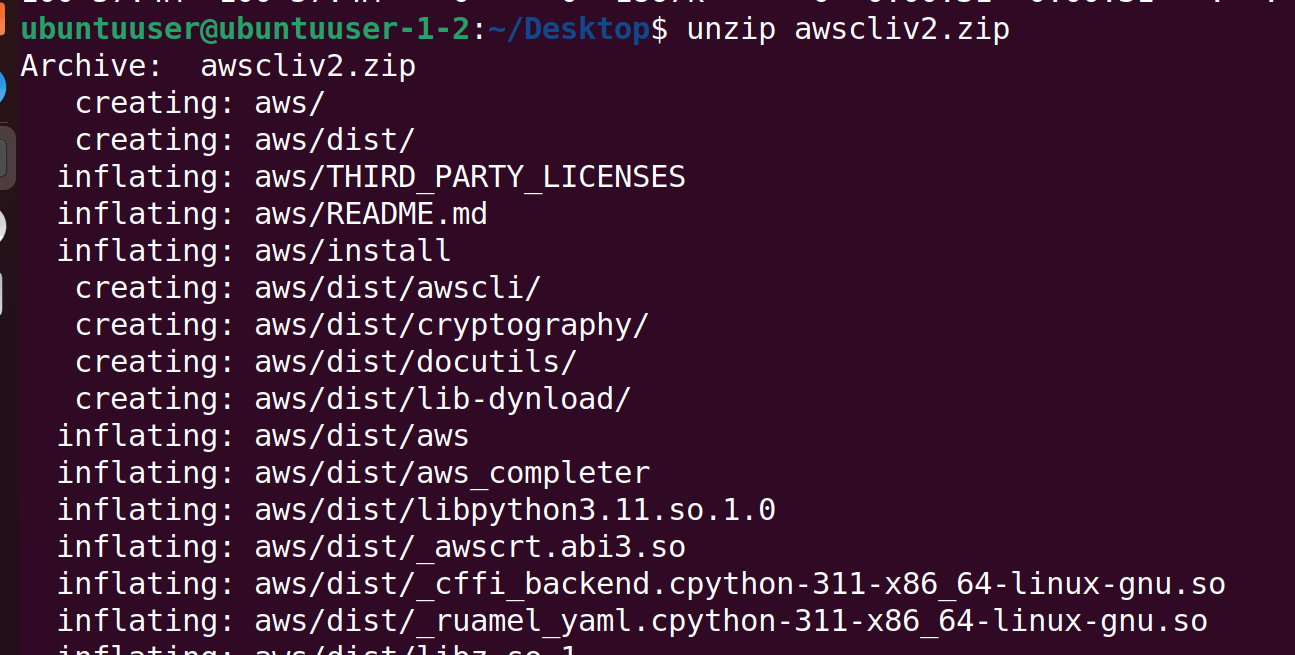
Step 3: Install AWS CLI
This executes the AWS CLI installer in the “aws/install” directory. Provide the password for the currently logged-in user to begin installation:
sudo ./aws/install
Step 4: Verify Installation
Verify the installation by running:
aws --version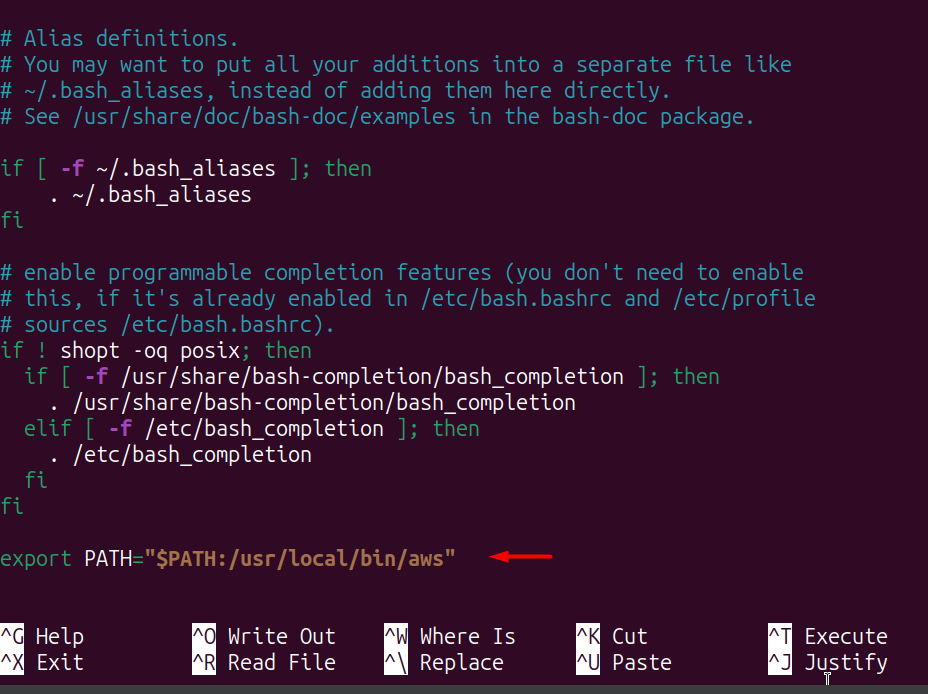
Step 5: Setting AWS CLI to Global
Setting the AWS CLI to global setup helps the system locate the AWS CLI executable. Open the .bashrc file with nano:
sudo nano ~/.bashrc
Append the following line to configure the PATH. Press CTRL+X then Y and Enter to save:
export PATH="$PATH:/usr/local/bin/aws"Refresh the shell:
source ~/.bashrc
You can now check the AWS CLI version without superuser privileges:
aws --version
How to Uninstall AWS CLI on Ubuntu 24.04?
To uninstall AWS CLI installed via the tar.gz method, remove the install directory:
sudo rm -rf /usr/local/aws
Then remove the AWS CLI executable symlink:
sudo rm -rf /usr/local/bin/aws
Confirm removal — the command should return “command not found”:
aws --version
How to Install AWS CLI on Ubuntu 24.04 Using Pip Installer?
Python provides a pip installer which is useful for downloading and installing various packages. This method installs AWS CLI v1 — use the zip method above if you need AWS CLI v2.
Step 1: Update Apt Repository
Update the apt repository first:
sudo apt-get update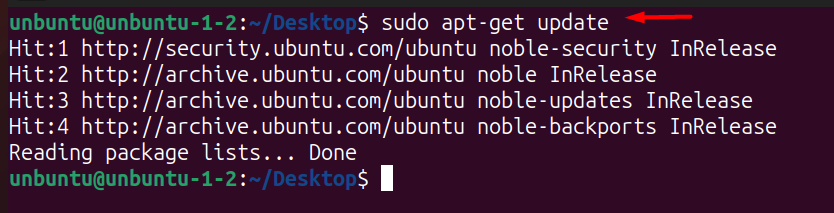
Step 2: Install Pip Installer
Install pip3 via apt:
sudo apt-get install python3-pip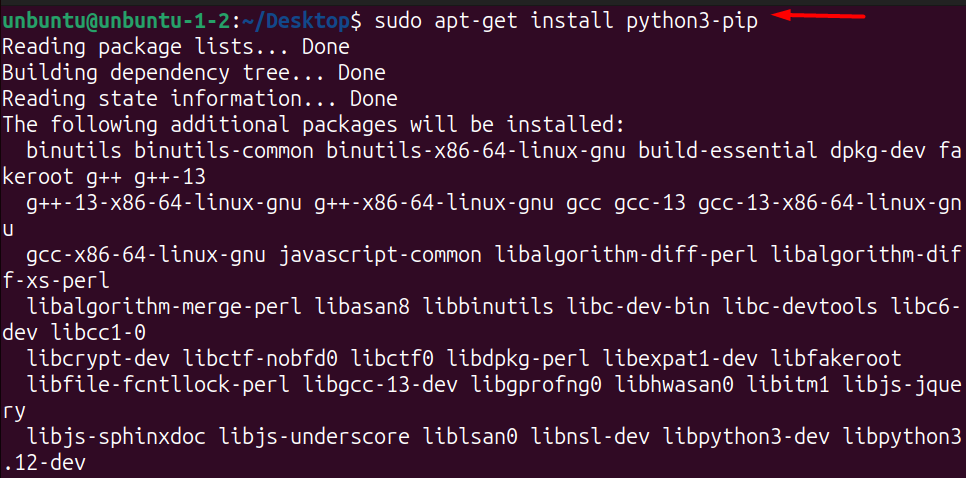
Step 3: Install AWS CLI
Install AWS CLI using pip3. The --break-system-packages flag prevents the “externally managed environment” error on Ubuntu 24.04:
pip3 install awscli --break-system-packages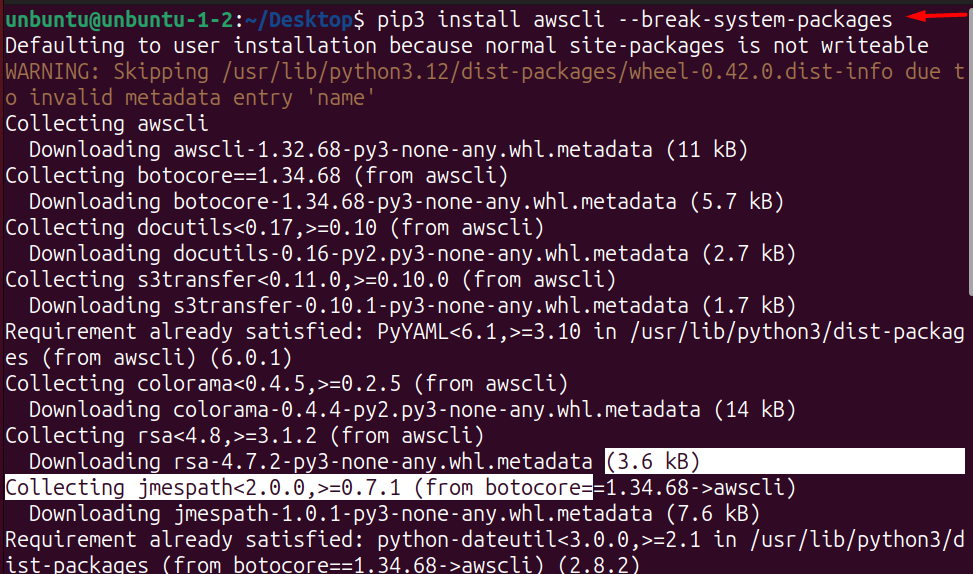
Step 4: Verify Installation
Check which version of AWS CLI is installed:
pip show awscli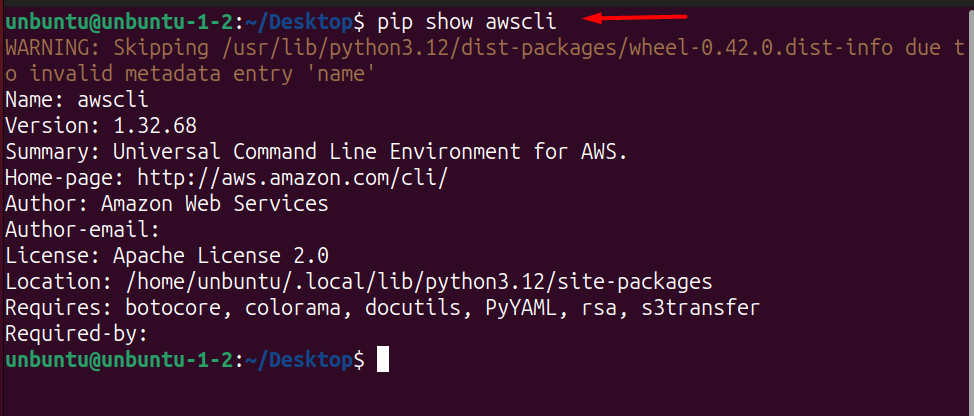
How to Uninstall AWS CLI on Ubuntu 24.04 Using Pip Installer?
Remove AWS CLI installed via pip3:
pip3 uninstall awscli --break-system-packages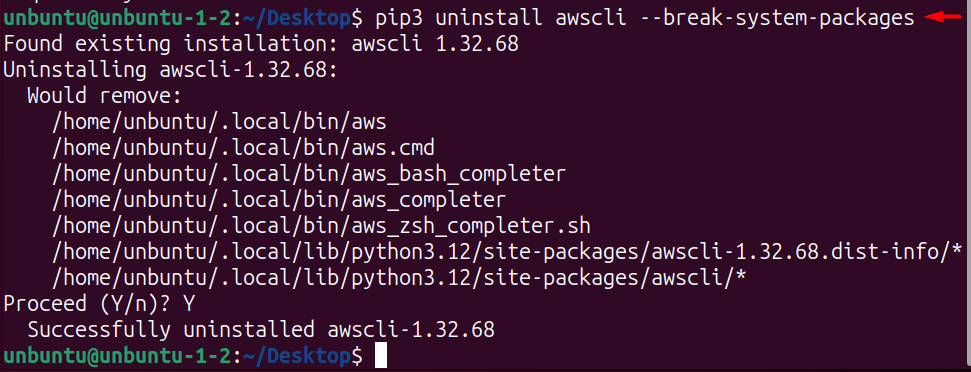
Configure AWS CLI after installation
After installing AWS CLI, run aws configure to set up your credentials before running any AWS commands:
aws configureThe command prompts for four values: AWS Access Key ID, AWS Secret Access Key, default region (e.g., us-east-1), and output format (json, yaml, or text). Credentials are stored in ~/.aws/credentials and ~/.aws/config. Verify the active profile with:
aws sts get-caller-identityWhich AWS CLI install method should you use?
Use the official zip installer when you want the current AWS CLI v2 package and predictable compatibility with AWS documentation. This is the better choice for servers, automation, and development systems used for real cloud work.
Use Snap when you want the shortest installation path on a personal Ubuntu desktop. After installation, configure credentials with aws configure only on trusted machines — avoid placing long-term access keys on shared systems.